Wi-Fi AP Placement Map From a Zoom Call
The meeting ends. Everyone agrees where the eight access points go. Then everyone leaves, and the agreement lives in a Zoom audio file and a floor plan PDF the building manager emailed last week. Michael has until Friday to turn those into a layout.
This guide does Michael’s job with an AI agent: Claude Code on Opus plus av-kit, the Windows app I build to give an agent hands for audio and screenshots. The Wi-Fi AP placement comes out as one picture: the plan, an AP legend, and a numbered mark for each new position. You’re Michael. Every step heading says who acts: You, or You and your agent.
One honest note. The company, the meeting, the people and the AP list are made up. The recording is real audio: av-kit’s text to speech read my script in four voices, 2 minutes 45 seconds in all. The floor plan is a real 1959 drawing. Every av-kit and transcript step ran on my PC, and those results are real. The firewall step did not run, because I have no FortiGate.
Who does what in Wi-Fi AP placement
| Step | You | Your agent |
|---|---|---|
| 1. av-kit | Install it, copy one prompt | Connects the MCP server and checks it |
| 2. Meeting | Download the audio file | Turns it into text, lists the decisions |
| 3. Floor plan | Capture it from the PDF | — |
| 4. AP list | Bring a read-only key | Sends one request, builds the table |
| 5. Map | Check each mark | Writes the legend, places the marks, exports |
Think of the result as meeting minutes with a map. Nobody can mount an AP from a list of decisions, so your agent pins each one to the drawing. One caveat for later: the picture records what the meeting decided, not whether the meeting was right.
Before you start
- Windows 10 or 11, 64-bit. av-kit runs only there.
- Claude Code with Opus selected (
/model opus). - A read-only API key for the firewall, from the firewall admin.
1. You and your agent: install av-kit and connect the av-kit MCP server
av-kit holds the tools, and the MCP server is the door your agent uses to reach them. av-kit writes the setup prompt for you.
- Download
av-kit-Setup-<version>.exefrom the av-kit Releases page. - Run the installer. If Windows SmartScreen asks, select More info, then Run anyway.
- Open av-kit. Open Settings. Find the MCP access card.
- Under Client, select Claude Code. Under Scope, select User (all projects).
- Select Copy prompt.
- Paste the prompt into Claude Code.
- Does your agent ask for a restart? Close Claude Code. Open it again with
claude --continue. ReplyReady. - Check that the answer ends with
RESULT: connected.
SmartScreen asks because the installer isn’t code-signed yet. Behind the prompt, your agent registers the server with one command of this shape, then calls avkit_health to prove the tools answer:
claude mcp add avkit --scope user -e ELECTRON_RUN_AS_NODE=1 -e "AVKIT_APP_DATA=<app data folder>" -- "<av-kit.exe>" "<mcp-server\index.mjs>"Keep av-kit running while you work. The tray icon is enough.
2. You and your agent: get the Zoom audio file and turn it into decisions
Opus can’t hear. Claude Code reads text, images and PDFs, so your agent has to turn the recording into text before it can read a word of the meeting.
⚠️ Caution: Do not process a recording without permission from the meeting host. The speech-to-text tool runs on your PC. The transcript goes to your AI provider.
Local recording? The Zoom audio file is already in the meeting’s folder on your PC, named like audio98796876.m4a. Start at item 4.
- Open the Zoom web portal. Select Recording & Transcripts.
- Select the Cloud recordings tab. Open the recording.
- Select Download. Select Download again.
- Give your agent the path of the audio file.
- Paste the prompt below.
Check the audio file at [path] with av-kit. Make a transcript with timestamps, using a speech-to-text tool that runs on this PC. Expect small mistakes in it. Then list every decision about an access point: the AP number, the new position in the words of the meeting, and any rule that goes with it. Add the rules for all APs and the open items with their owners. Put the timestamp beside each line.
Zoom saves a cloud audio file only when the host enabled Record audio-only files. If you have just the MP4, ask your agent to extract the audio with av-kit.
Mine ran av-kit’s probe first: 2 minutes 45 seconds, AAC audio, no video. av-kit doesn’t transcribe local audio yet, so the agent wrote a short Python script around faster-whisper. Two lines of the result:
[00:53] Agreed, access point two is an outdoor unit. Put it on the outside wall above the loading dock, halfway along the dock. That is where the truck's back in.
[01:11] Careful with number four. I do not want any new electrical gear inside the degreening area because of the ethylene. Keep it outside the tarps.
My script said “trucks back in.” The tool also dropped three speakers’ names, and it never says who is talking.
Opus listed eight AP decisions, four rules and three open items, each with a timestamp. It caught the “truck’s” slip. It also said what it couldn’t know: with no speaker names, it couldn’t tell who promised the channel plan. I’ll take that over a confident guess.
A shortcut: on Pro plans and higher, Zoom’s Create audio transcript setting saves a VTT text file that your agent reads directly.
3. You: take the floor plan screenshot
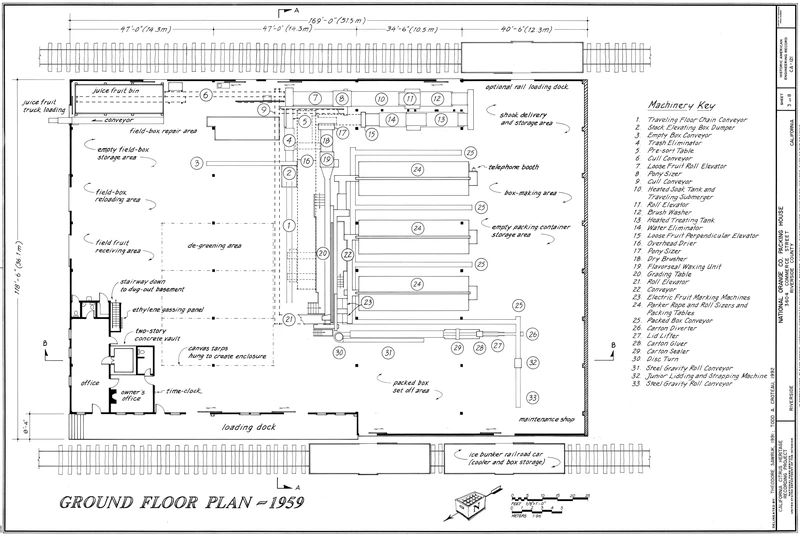
av-kit marks pictures, not PDFs, so the plan has to become a shot in av-kit’s capture inbox. My floor plan screenshot shows “Ground Floor Plan – 1959” of the National Orange Company Packing House, from the Library of Congress. Credit: Historic American Engineering Record, National Park Service, delineated by Theodore Sawruk, 1991, and Todd A. Croteau, 1992.
- Open the PDF. Zoom until the full plan is in view.
- Press F2.
- Drag a region around the plan. Include the key column at the right.
- Select Save.
- Ask your agent to list the shots in av-kit. Check that the newest shot is the plan.
The key column is where the AP legend goes in step 5. No key on your plan? Include blank space beside the drawing.
F2 is av-kit’s default capture key. For this post, my agent took the capture itself: a full-screen capture of the PDF viewer, then a crop.
4. You and your agent: read the FortiGate managed AP list
The made-up site runs a FortiGate firewall with FortiAP access points. I picked that pair because a FortiGate is also the wireless controller, so the FortiGate managed AP list is one read-only request away. Fortinet claimed about 55% of firewall units shipped on its Q4 2025 earnings call. In Wi-Fi, it’s outside the top five of IDC’s 2Q26 numbers. Other brands change the request, not the idea.
⚠️ Warning: Give your agent a read-only API key. Do not give it an administrator password. Do not paste the key into a chat. Ask the firewall admin to limit the key to the address of your PC.
- Save the API key in an environment variable named
FORTIGATE_TOKEN. - Paste the prompt below.
- Check the number of APs in the table against the number the firewall admin expects.
Read the managed AP list from the FortiGate at [address]. The API key is in the FORTIGATE_TOKEN environment variable. Send one GET request and change nothing. Show me the field names in the answer. Then make a table: name, brand, model, and the last octet of each IP address.
The request your agent should send:
GET https://<firewall address>/api/v2/monitor/wifi/managed_ap
Authorization: Bearer <API key>
I didn’t run this one, so I won’t print field names I haven’t seen. The table for the made-up site, all Fortinet:
| Mark | Name | Model | Type | IP ends in |
|---|---|---|---|---|
| 1 | PH-AP-01 | FAP-241K | indoor | .21 |
| 2 | PH-AP-02 | FAP-244K | outdoor | .22 |
| 3 | PH-AP-03 | FAP-441K | indoor | .23 |
| 4 | PH-AP-04 | FAP-441K | indoor | .24 |
| 5 | PH-AP-05 | FAP-441K | indoor | .25 |
| 6 | PH-AP-06 | FAP-443K | indoor, external antennas | .26 |
| 7 | PH-AP-07 | FAP-241K | indoor | .27 |
| 8 | PH-AP-08 | FAP-244K | outdoor | .28 |
Why only the last octet? A forwarded picture gives away less of the network.
5. You and your agent: build the access point placement map
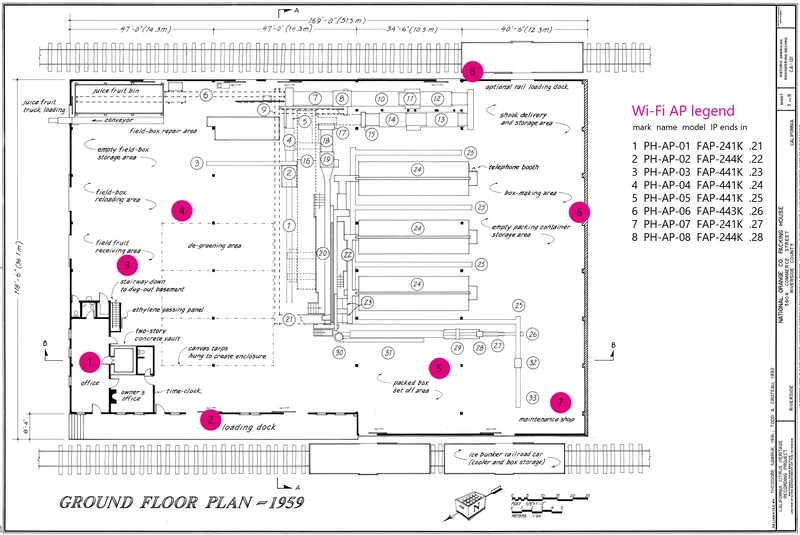
The pink numbers match the legend.
- Paste the prompt below. Put the id of your shot and the path of your AP list in it.
- Wait for the export.
Use av-kit shot [id]. It is the floor plan. The AP list from the firewall is at [path]. First read the plan and its Machinery Key. Then cover the Machinery Key with a white box and write the AP legend there: mark number, name, model, and the last octet of the IP address. Then put one numbered pink mark (#E4007C) on the plan for each AP’s new position from the meeting’s decisions. Check the picture, tell me which marks you are least sure about, and export it as WebP, 800 px wide.
Reading the key first paid off. The meeting banned APs above two heated tanks, and the drawing shows those only as machines 10 and 13. Opus built the access point placement map in three rounds and 25 av-kit calls: 15 looks at the picture, 4 annotate, 5 get and 1 export. One quirk: annotate replaces every mark on a shot, so the agent sends the full list each time.
You: check each mark
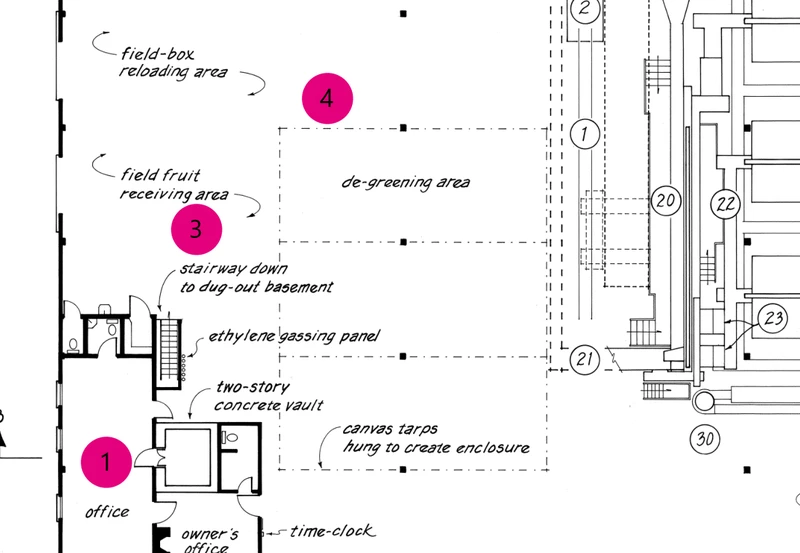
- Open the exported picture.
- Check each mark against the decision list from step 2.
- Ask your agent which marks it is least sure about.
- Is a mark wrong? Give your agent the correct position in words.
Mine named four. AP 3: the meeting said “on a column,” and Opus found no free-standing column drawn in that area, so you pick one on site. AP 8: nobody said where along the rail dock. AP 2: “halfway along the dock” lands on a sliding door. AP 4: “right beside” the de-greening area could mean any side.
It also listed what the picture can’t show: the four-meter mounting height, where AP 6’s antennas point, and the corner by the juice fruit bin that the meeting left open.
What the map is not
It’s not a site survey. The made-up meeting knew that: Michael walks the floor with one AP on a pole before anyone drills. A survey tells you whether the positions work. The map makes sure the installer and the meeting mean the same wall.
I learned the difference at home, two days before I wrote this. My agent built a floor plan sheet with a numbered legend of my Wi-Fi devices, and I marked each one in av-kit. The map was tidy, and it didn’t find the problem. A 24-hour log did: five small plugs made 78% of the resends.
Get av-kit on GitHub, connect it with the copy-paste prompt, and try a Wi-Fi AP placement on a plan you already have. If a label here no longer matches the app, open an issue on the repo.
Resources
- av-kit on GitHub
- av-kit releases
- Claude Code: connect tools with MCP
- Zoom: local recording files
- Zoom: manage and download cloud recordings
- Zoom: cloud recording settings
- Zoom: audio transcripts for cloud recordings
- faster-whisper
- National Orange Company Packing House, HAER CA-121 (Library of Congress)
- Fortinet: REST API administrator
- Fortinet: access points
- IDC: enterprise WLAN market, 2Q26
- Fortinet community: bad practices when placing a FortiAP
- Open Reality: Wi-Fi in warehouses
The Focalia Letter
One idea you can use. About seven minutes. Twice a month.
Read next

eBay API Setup for an AI Listing Agent
eBay API setup for an AI listing agent, in Production. You click six eBay pages and paste three keys. Your agent runs the rest of the steps.
Read more →
Fix Your NVIDIA Shield in 7 Minutes
Fix your NVIDIA Shield by finding the right layer first, doing one short fix, and letting an AI run the long parts from a gist.
Read more →
Firewall Log Pipeline With Cursor
Build a local firewall log pipeline on Windows with NXLog and SQLite, then let Cursor query it read-only — no SIEM required.
Read more →